Unity客户端脚本自动化

起因

从毕业起一直在做Unity客户端的工作,每个基础模块的开发都会有一些重复性的工作,最近也在网上看到有编写工具来完成这些重复性的工作。

  • 根据美术给的素材拼UI预设Prefab
  • 获取Prefab的引用
  • 定义事件
  • 或许还有框架基类的一些方法和变量要实现

上述的四个流程 都可以通过插件实现,第一个可以去网上找一些插件,比如PSD2UGUI,一个开源项目。

这里着重说一下下面的三个工作怎么实现自动化生成脚本。


思路

当我们拿到Prefab 后就要编写脚本,来获取到某些组件的引用,然后我们可以用代码来控制这些组件,包括给它定义事件,或者更改内容等。

这里要考虑一下,通常我们之前的做法是通过绑定,或者是根据组件的名字通过Find来得到引用,但是这里我们需要通过代码来自动话实现获取到引用,那么就需要给我们Prefab的组件命名来定义一个规则,这样我们在脚本 中遍历组件的时候才知道那些是需要引用的,那些是不需要的,包括它的类型,比如我是这样命名的。

  • 按钮的名字以 Btn_ 开头
  • 图片的名字以 Image_ 开头
  • 文字的名字以 Text_ 开头

当然上面这些是需要在脚本里动态设置一些属性的才会用这种命名格式,有写图片也需要有点击方法,那么可以 这样命名 ImageClick 以这个开头,然后在脚本里检测,然后在给它处理点击事件,这里我没有做,只是做了一个小工具,内容不全,但思路已经有了(懒)


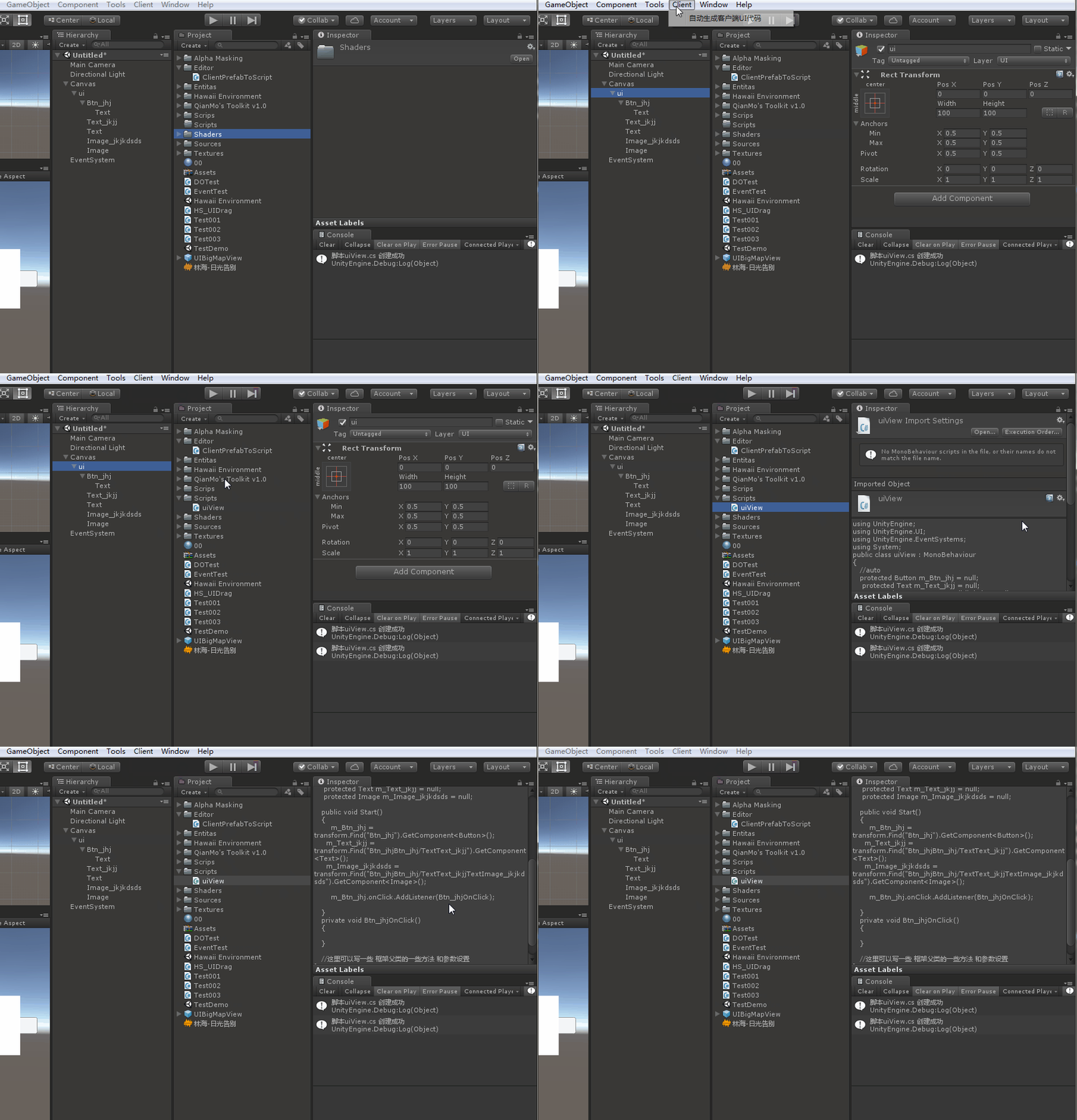
效果
脚本

PrefabToScriptTemplate 类 是一个模板类,里面有一些像 #类名# 这种的字符串,会在后期替换掉

1
2
3
4
5
6
7
8
9
10
11
12
13
14
15
16
17
18
19
20
public class PrefabToScriptTemplate
{
public static string UIClass =
@"using UnityEngine;
using UnityEngine.UI;
using UnityEngine.EventSystems;
using System;
public class #类名# : MonoBehaviour
{
//auto
#预设成员变量#
public void Start()
{
#查找#
#事件#
}
#事件方法#
//这里可以写一些 框架父类的一些方法 和参数设置
}";
}

ClientPrefabToScript 这个是生成代码的重点,包含了查找选中物体的子物体的种类类型,注册事件,等

1
2
3
4
5
6
7
8
9
10
11
12
13
14
15
16
17
18
19
20
21
22
23
24
25
26
27
28
29
30
31
32
33
34
35
36
37
38
39
40
41
42
43
44
45
46
47
48
49
50
51
52
53
54
55
56
57
58
59
60
61
62
63
64
65
66
67
68
69
70
71
72
73
74
75
76
77
78
79
80
81
82
83
84
85
86
87
88
89
90
91
92
93
94
95
96
97
98
99
100
101
102
103
104
105
106
107
108
109
110
111
112
113
114
115
116
117
118
119
120
121
122
123
124
125
126
127
128
129
130
131
132
133
134
135
136
137
138
139
140
141
142
143
144
145
146
147
148
149
150
151
152
153
154
155
156
157
158
159
160
161
162
163
164
165
166
167
168
169
170
171
172
173
174
175
176
177
178
179
180
181
182
183
184
185
186
187
188
189
190
191
192
193
194
195
196
197
198
199
200
201
202
203
204
205
206
207
208
209
210
211
212
213
214
215
216
217
218
219
220
221
222
223
using System.Collections;
using System.Collections.Generic;
using UnityEngine;
using UnityEditor;
using System.IO;

public class PrefabToScriptTemplate
{
public static string UIClass =
@"using UnityEngine;
using UnityEngine.UI;
using UnityEngine.EventSystems;
using System;
public class #类名# : MonoBehaviour
{
//auto
#预设成员变量#
public void Start()
{
#查找#
#事件#
}
#事件方法#
//这里可以写一些 框架父类的一些方法 和参数设置
}";
}

public class ClientPrefabToScript : Editor {

public static string _ObjName = "";
private static string _FindObjStr = "";
private static string _eventStr = "";
private static string _eventFunStr = "";
public static Dictionary<string, string> _ObjTypeList = new Dictionary<string, string>();
public static Dictionary<string, string> _ObjPathList = new Dictionary<string, string>();
private static string BtnNameStr = "Btn_";
private static string ImageNameStr = "Image_";
private static string TextNameStr = "Text_";
private static string ToggleNameStr = "Toggle_";
private static string SliderNameStr = "Slider_";
private static string ScrollviewNameStr = "Scroll_";
private static string ScrollbarNameStr = "Scrollbar_";
private static Transform currSelectObj = null;
private static string _ObjPathName = "";

[MenuItem("Client/自动生成客户端UI代码")]
public static void BuildUICode() {
ClearData();
GameObject selectObj = null;
if (Selection.activeObject == null)
{
Debug.Log("未选中组件,或者选中的组件未激活");
}
else if (((GameObject)Selection.activeObject).transform.childCount <= 0)
{
Debug.Log("您选中的物体该要个孩子了...");
}
else {
selectObj = (GameObject)Selection.activeObject;
currSelectObj = selectObj.transform;
if (!ScriptDetection(selectObj.name + "View.cs"))
{
Debug.Log("项目中已经存在这个脚本了,给预设换个名字试试吧...");
}
else {
GetObjsDefintion(selectObj.transform);
GetFindObjsStr();
CreateScript(selectObj.name + "View");
}
}

}

public static void ClearData() {
_ObjTypeList.Clear();
_ObjPathList.Clear();
_ObjName = "";
_FindObjStr = "";
_ObjPathName = "";
_eventFunStr = "";
_eventStr = "";
}

public static void CreateScript(string scriptName) {
string scriptPath = Application.dataPath + "/Scripts/" + scriptName + ".cs";
string classStr = PrefabToScriptTemplate.UIClass;
classStr = classStr.Replace("#类名#", scriptName);
classStr = classStr.Replace("#预设成员变量#", _ObjName);
classStr = classStr.Replace("#查找#", _FindObjStr);
classStr = classStr.Replace("#事件#", _eventStr);
classStr = classStr.Replace("#事件方法#", _eventFunStr);

FileStream file = new FileStream(scriptPath, FileMode.CreateNew);
StreamWriter filew = new StreamWriter(file, System.Text.Encoding.UTF8);
filew.Write(classStr);
filew.Flush();
filew.Close();
file.Close();

Debug.Log("脚本" + scriptName + ".cs 创建成功");
AssetDatabase.SaveAssets();
AssetDatabase.Refresh();
}

public static void GetFindObjsStr() {
foreach (var item in _ObjTypeList) {
switch (item.Value) {
case "Button":
string btnStr = _ObjPathList[item.Key];
_FindObjStr += item.Key + " = transform.Find(\"" + btnStr + "\").GetComponent<Button>(); \n ";
break;
case "Image":
string imgStr = _ObjPathList[item.Key];
_FindObjStr += item.Key + " = transform.Find(\"" + imgStr + "\").GetComponent<Image>(); \n ";
break;
case "Text":
string textStr = _ObjPathList[item.Key];
_FindObjStr += item.Key + " = transform.Find(\"" + textStr + "\").GetComponent<Text>(); \n ";
break;
case "Toggle":
string ToggleStr = _ObjPathList[item.Key];
_FindObjStr += item.Key + " = transform.Find(\"" + ToggleStr + "\").GetComponent<Toggle>(); \n ";
break;
case "Slider":
string SliderStr = _ObjPathList[item.Key];
_FindObjStr += item.Key + " = transform.Find(\"" + SliderStr + "\").GetComponent<Slider>(); \n ";
break;
case "Scrollbar":
string ScrollbarStr = _ObjPathList[item.Key];
_FindObjStr += item.Key + " = transform.Find(\"" + ScrollbarStr + "\").GetComponent<Scrollbar>(); \n ";
break;
}
}
}

public static void GetObjsDefintion(Transform tf) {
if (tf != null) {
for (int i = 0; i < tf.childCount; i++)
{
bool b = false;
if (tf.GetChild(i).name.StartsWith(BtnNameStr))
{
ObjPathHandle(tf.GetChild(i));
NameHandle("Button", tf.GetChild(i).name);
_eventStr += "m_" + tf.GetChild(i).name + ".onClick.AddListener(" + tf.GetChild(i).name + "OnClick);\n ";
_eventFunStr += "private void " + tf.GetChild(i).name + "OnClick() \n {\n \n }\n ";
}
else if (tf.GetChild(i).name.StartsWith(ImageNameStr))
{
ObjPathHandle(tf.GetChild(i));
NameHandle("Image", tf.GetChild(i).name);
}
else if (tf.GetChild(i).name.StartsWith(TextNameStr))
{
ObjPathHandle(tf.GetChild(i));
NameHandle("Text", tf.GetChild(i).name);
}
else if (tf.GetChild(i).name.StartsWith(ToggleNameStr))
{
ObjPathHandle(tf.GetChild(i));
NameHandle("Toggle", tf.GetChild(i).name);
_eventStr += "m_" + tf.GetChild(i).name + ".onValueChanged.AddListener(" + tf.GetChild(i).name + "OnChanged);\n ";
_eventFunStr += "private void " + tf.GetChild(i).name + "OnChanged(bool value) \n {\n \n }\n ";
}
else if (tf.GetChild(i).name.StartsWith(SliderNameStr))
{
ObjPathHandle(tf.GetChild(i));
NameHandle("Slider", tf.GetChild(i).name);
_eventStr += "m_" + tf.GetChild(i).name + ".onValueChanged.AddListener(" + tf.GetChild(i).name + "OnChanged);\n ";
_eventFunStr += "private void " + tf.GetChild(i).name + "OnChanged() \n {\n \n }\n ";
}
else if (tf.GetChild(i).name.StartsWith(ScrollviewNameStr))
{
ObjPathHandle(tf.GetChild(i));
NameHandle("Scrollview", tf.GetChild(i).name);
}
else if (tf.GetChild(i).name.StartsWith(ScrollbarNameStr))
{
ObjPathHandle(tf.GetChild(i));
NameHandle("Scrollbar", tf.GetChild(i).name);
}

if (tf.GetChild(i).childCount > 0)
{
//_ObjPathName += "/";
GetObjsDefintion(tf.GetChild(i));
}
}
}
}

private static void ObjPathHandle(Transform transform) {
if (_ObjPathName.Equals(""))
{
_ObjPathName = transform.name;
}
else {
_ObjPathName = transform.name + "/" + _ObjPathName;
}
if (transform.parent != currSelectObj) {
ObjPathHandle(transform.parent);
}
}

public static void NameHandle(string type , string name) {
_ObjName += "protected " + type + " m_" + name + " = null;\n ";
_ObjTypeList.Add("m_" + name, type);
_ObjPathList.Add("m_" + name, _ObjPathName);
_ObjPathName = "";
}

public static bool ScriptDetection(string name) {
name = "Assets/Scripts/" + name;
string[] assetPath = AssetDatabase.GetAllAssetPaths();
for (int i = 0; i < assetPath.Length; i++)
{
if (assetPath[i].EndsWith(".cs") && assetPath[i].Equals(name)) {
return false;
}
}
return true;
}
}

使用

使用的时候要记得在Hierarchy 视窗中选中 Prefab 的最外层节点,然后点击 菜单栏的 Client/自动生成客户端UI代码 然后在 Console中显示“脚本创建成功” 就说明脚本自动生成 成功了。

最后

这个小工具,只是拓展了一下思路,在开发中 省去了一些无聊的工作流程,后期会慢慢优化,当然工具都是跟着项目走的,思路才是应该掌握的,加油!

坚持原创技术分享,您的支持将鼓励我继续创作!